

How to Set Up a Fabric Minecraft Server on Windows
Aug 10, 2026
What you'll need
A Windows PC that can stay on while people are playing, and enough RAM to spare for the server on top of everything else running. You don't need to install Java first - Coalstack works out which version your server needs and downloads it for you the first time. For a small Fabric server with a handful of mods, 2-4GB dedicated to the server is a comfortable starting point; heavier modpacks will want more.
You don't need a hosting provider, a VPS, or any command-line experience. Everything below happens in one app window, and Coalstack handles the parts you'd normally open a terminal for.
What is Fabric?
Minecraft: Java Edition doesn't support mods on its own. It needs a mod loader, a separate piece of software that sits between the game and the mods and makes them work. Fabric is one of the major mod loaders, alongside Forge and NeoForge.
Fabric is known for being lightweight and fast. It starts up quicker than the other loaders, uses less RAM at idle, and updates to new Minecraft versions very quickly, often within days of a new release. That speed is why most performance and optimization mods (Sodium, Lithium, Phosphor) target Fabric first, and why the popular "optimization-only" modpacks almost always use it.
The trade-off: Fabric's mod ecosystem is smaller than Forge's. You won't find the same massive kitchen-sink modpacks on Fabric, and some of the big, long-running mods from older Minecraft versions only exist on Forge. But if you want a fast, stable server with a curated set of mods, especially performance and quality-of-life improvements, Fabric is a great choice.
If you already have a specific mod or modpack in mind, check which loader it's built for and pick that one. Mod loaders aren't cross-compatible: a Fabric mod won't load on Forge, and vice versa.
Creating the server
Open Coalstack and click New Server on the Servers page, then Create New Server to launch the Setup Wizard. Pick Fabric as the platform, choose the Minecraft version you want, give it a name, and pick a parent folder for it to live in (your Desktop or Documents folder works fine).
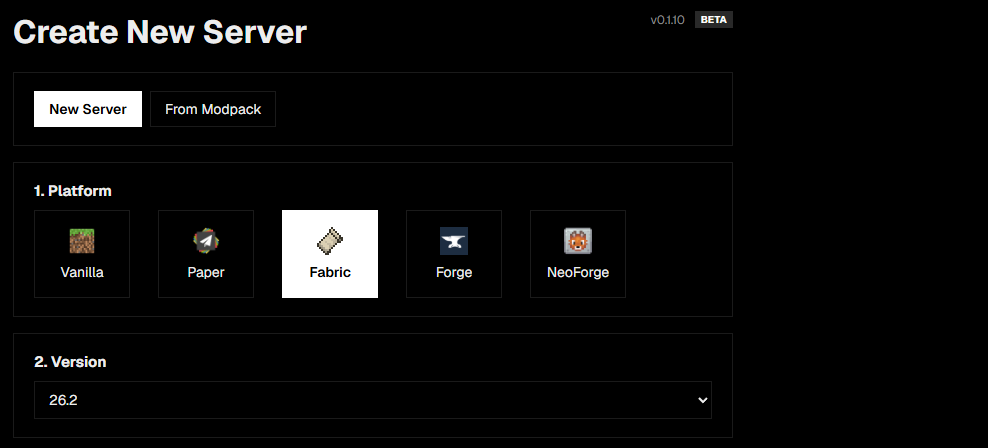
Coalstack downloads the correct Fabric server jar, creates the folder, accepts the EULA on your behalf, and writes an initial server.properties file. The server is ready to start the moment the wizard finishes. No hunting down jar files on a website, no hand-editing a EULA text file.
Already have a Fabric server folder from somewhere else? Use Choose Server Folder instead and point Coalstack at it. It'll detect the platform and version automatically and pick up right where you left off.
Installing mods
With the server created, open its Dashboard and go to Marketplace. The Mods tab is a Modrinth-powered browser built into the app. Search by keyword or browse what's trending, and every result shows its description, download count, and which game versions and loaders it supports, so you can see at a glance whether a mod actually works on Fabric before you install it.
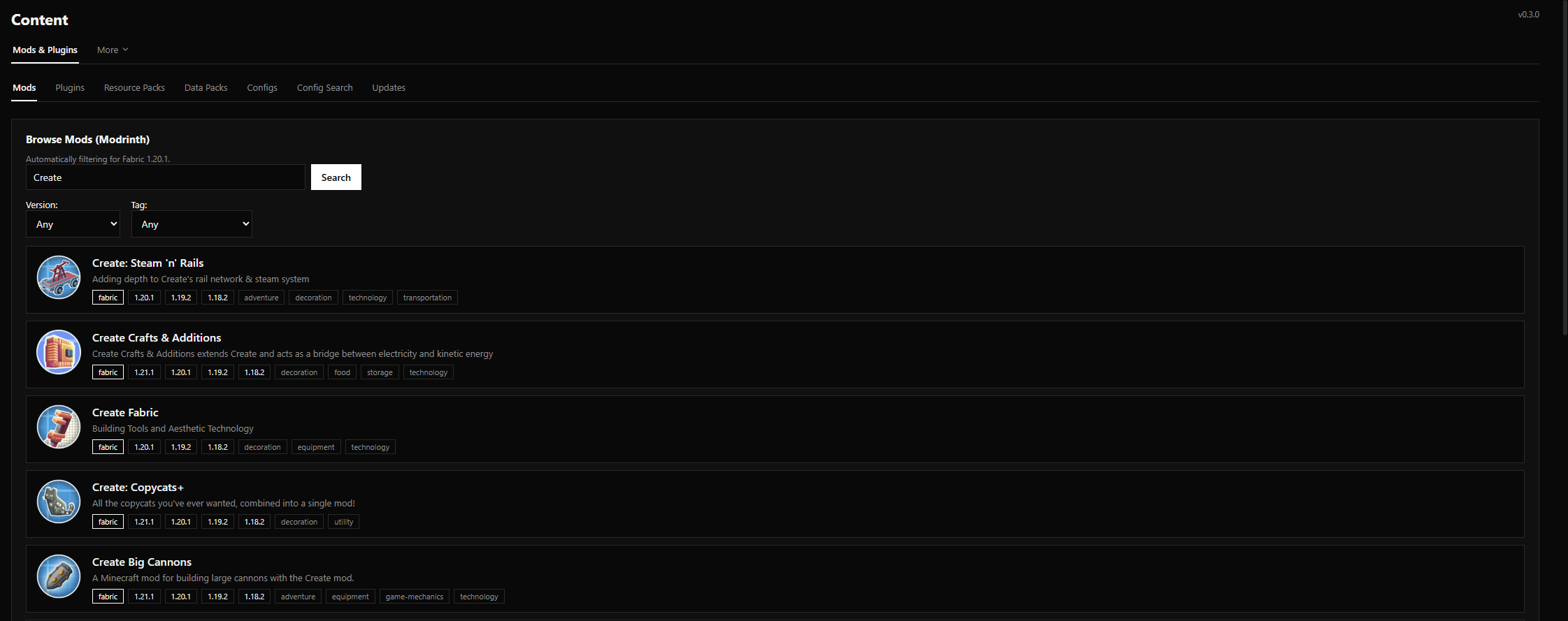
Click a mod to open its detail panel: full description, screenshots, a dependency list, and a version picker showing every published build. Installing a mod drops the jar straight into your server's mods folder. No manual file management needed.
A quick tip for Fabric servers: many mods also need the Fabric API installed. It's a shared library that most Fabric mods depend on. Think of it as the "standard library" for Fabric. If you search for "Fabric API" in the Marketplace and install it alongside your other mods, you'll avoid the most common cause of mods failing to load.
On a PRO license or higher, Coalstack flags each mod as compatible, incompatible, or unknown against your server's detected platform and version. A loader mismatch (like accidentally installing a Forge mod on a Fabric server) shows up here before you start the server, instead of as a cryptic crash log after.
Starting the server and connecting
Back on the Servers page, hit Start on the server's card. The status pill moves through BOOTING UP to RUNNING once the world's finished generating. Fabric servers typically boot noticeably faster than other loaders, especially with only a few mods installed.
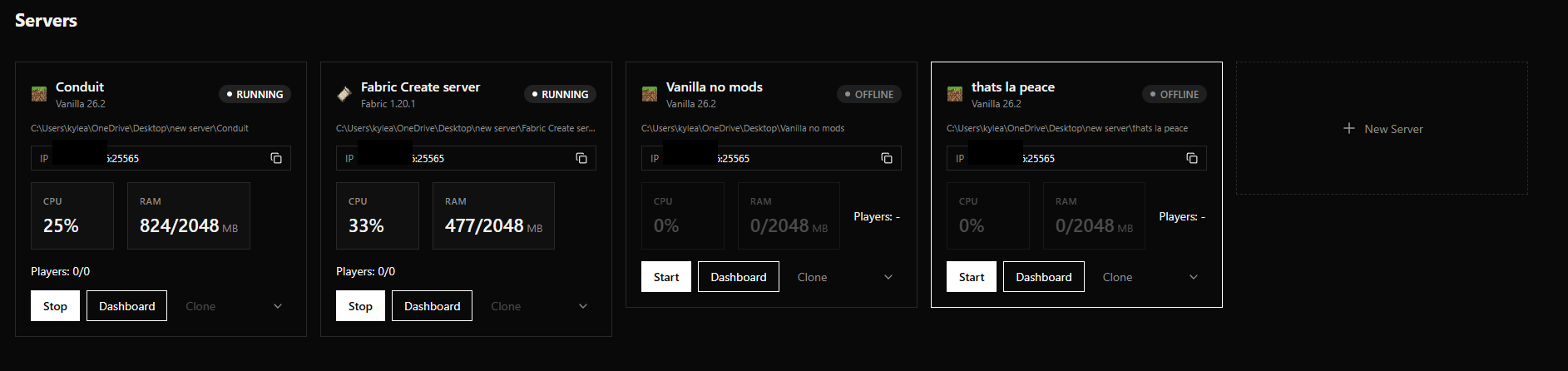
The card's IP address is copyable with one click. Send that to whoever you want to play with. If they're on the same Wi-Fi network as you, they can connect right away using the local IP. If they're not, you'll need to forward the server's port on your router (the default is 25565). Coalstack's Networking page has a uPnP option that can handle this automatically on routers that support it.
Everyone joining your server will also need Fabric installed on their own Minecraft client, since the server and client mod loaders need to match. They can grab the Fabric installer from fabricmc.net, and it's a one-click install into the vanilla launcher.
Keeping it backed up
Even a stable, well-tested mod can corrupt a chunk or break a world. On the Backups page, turn on automatic backups and set an interval. Coalstack zips up every world dimension into a timestamped archive on that schedule, checked every 15 minutes while the server is running.
Before adding new mods or updating existing ones, hit Back Up Now for a manual backup first. If something goes wrong (a mod conflict breaks the world, a chunk gets corrupted), you can restore any backup from the same page in a couple of clicks. Snapshot backups (the 5 most recent, for quick save points) are also available if you want a lighter safety net.