

How to Make a Minecraft Server (2026)
Aug 28, 2026
What you actually need
Less than most guides tell you. To run a small server for you and some friends you need a Windows PC that stays on while people are playing, a stable internet connection, and a few gigabytes of free RAM. That is genuinely it.
You do not need to rent a server, and you do not need to install Java yourself. Coalstack downloads the correct Java version for whatever Minecraft version you pick and keeps it in its own folder, so you never have to think about JAVA_HOME, PATH variables, or which JDK build matches which game version.
On RAM: 2 GB is fine for a vanilla server with a handful of players. Plugins push that to 4 GB, and a heavy modpack can want 6-8 GB. The important rule is to leave enough for Windows itself - if your machine has 8 GB total, do not hand 7 GB to the server.
The two ways to do this
By hand: download a server jar from Mojang or PaperMC, install a matching JDK, write a .bat file with the right JVM flags, run it, read the error, accept the EULA in a text file, run it again, then configure server.properties in Notepad. It works, and it is how most tutorials teach it. It is also where most people give up, usually on a Java version mismatch that produces an error message explaining nothing.
With Coalstack: a setup wizard does the same steps, in order, without you touching a config file. That is what the rest of this guide covers. It is free for unlimited local servers, so nothing below costs anything.
Creating the server
Install Coalstack from the download page and open it, then choose Create New Server. The wizard asks five things:
- Platform - Vanilla for the unmodified game, Paper for plugins and much better performance, or Fabric / Forge / NeoForge if you want mods. If you are not sure, Paper is the best default for a server with friends.
- Version - the Minecraft version, pulled live from each platform own API. Match whatever version your players are on.
- Template - Survival, Hardcore, Creative, or Blank. This just pre-fills sensible
server.propertiesvalues; you can change any of them later. - Destination - a folder and a server name.
- RAM allocation - see the numbers in the first section. Coalstack shows your system total so you can tell what is safe to give it.
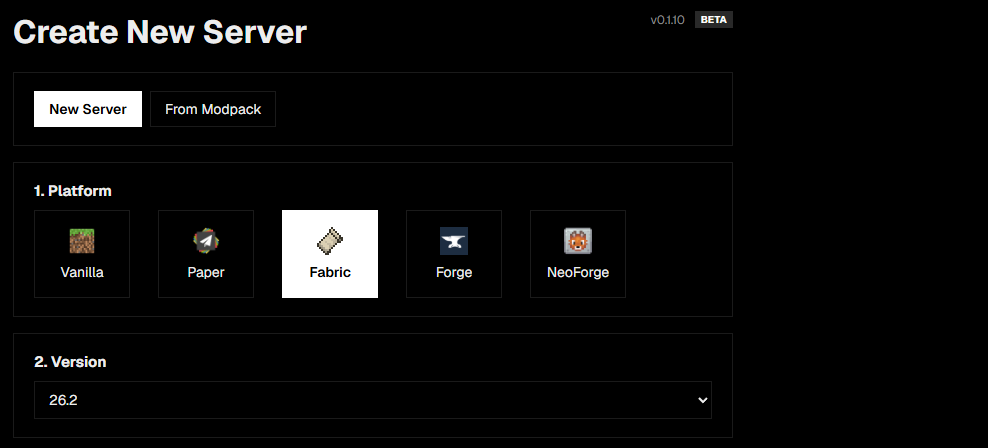
Hit Create. Coalstack downloads the server jar, fetches the matching Java version if it does not already have it, creates the folder structure, accepts the Minecraft EULA for you, and writes an initial server.properties. When it finishes, the server is ready to start.
Starting it and checking it works
Press Start. The first boot takes longer than later ones because the server generates the world - a minute or two is normal, and a large modpack can take considerably longer.
Watch the console while it boots. Errors are highlighted red and warnings yellow, so you can spot a real problem without reading every line. The status pill moves from BOOTING UP to RUNNING once the server is accepting connections.
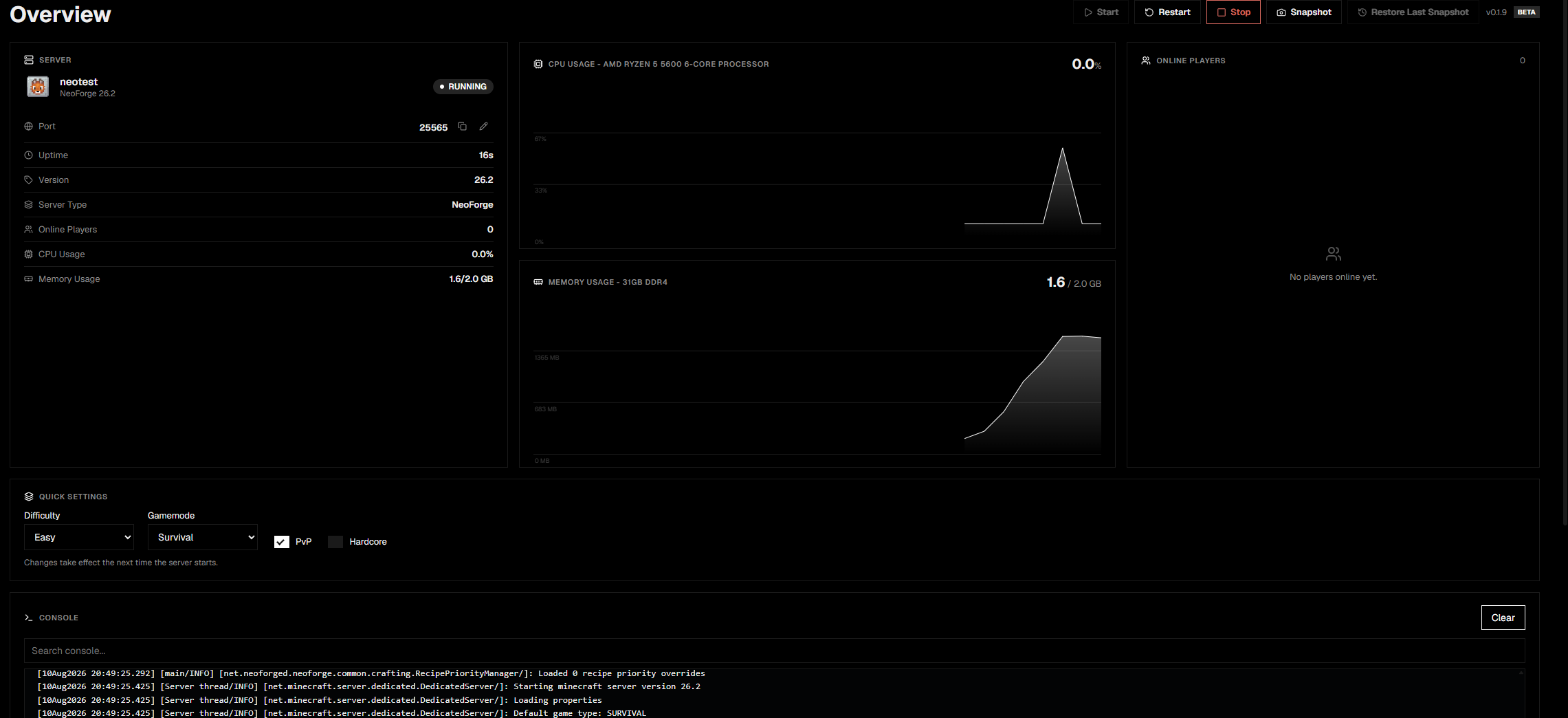
To test it yourself, open Minecraft on the same PC, go to Multiplayer, and connect to localhost. If you get in, the server works - and anything that goes wrong from here is a networking problem rather than a server problem, which is a much easier thing to narrow down.
Letting friends connect
This is the part that stops most people. Your server is running on your home network, which by default is not reachable from the internet. You need to forward the server port (25565 by default) from your router to your PC.
Coalstack can do this automatically over uPnP from the Networking page - pick the port and it asks your router to open it. Not every router supports uPnP and some ship with it disabled, so if it fails you will need to add the rule yourself in your router admin page. Our port forwarding guide walks through both.
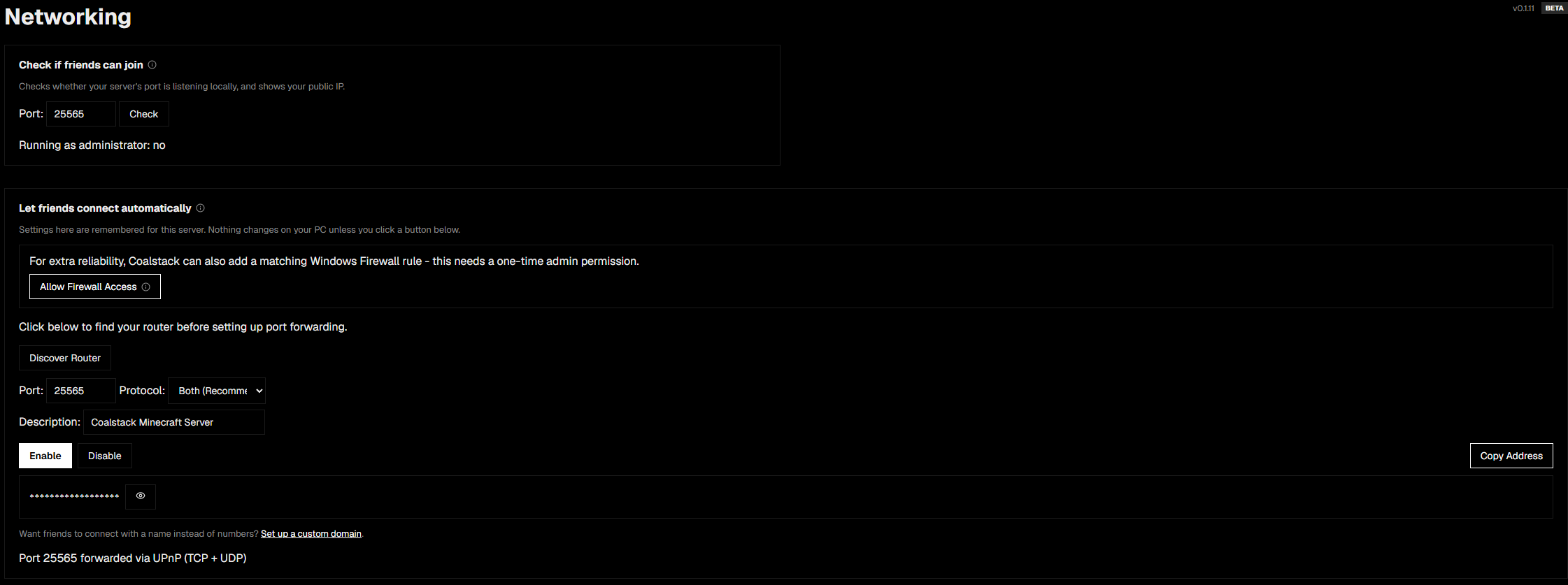
Once the port is open, your friends connect using your public IP and port. Most home connections change that IP periodically, which breaks the address without warning - if you would rather hand out a name that keeps working, set up a free DuckDNS subdomain or point your own domain at it. See the dynamic DNS guide.
Keeping it alive
A server that runs is not the same as a server you can rely on. Three things are worth setting up on day one:
- Automatic backups. Worlds get corrupted, people grief, and mods eat chunks. Set an interval and Coalstack zips every world dimension on a schedule while the server is running. Point a secondary destination at an external drive or a synced cloud folder so one failed disk is not the end of your world.
- Scheduled restarts. Long-running Java servers accumulate memory pressure. A restart during hours nobody plays avoids the slow degradation that makes people say the server feels laggy without knowing why.
- Crash alerts. If the server dies at 3am you want to know before your players tell you. Coalstack can restart it automatically and notify you.
If something does go wrong, the Auto Debugger scans the logs and crash reports for known error patterns and explains them in plain English - and there is a full error code reference for the ones that need more detail than fits in the app.